Reading Time: 7 minutes
Adding Pixie Dust to Your Phone

Your Ultimate Guide to Disney’s MagicMobile

Are you getting ready for your vacation to Walt Disney World? Looking to learn about Disney’s MagicMobile? You’ve come to the right place. Below you’ll find my ultimate guide to Disney’s MagicMobile

Adding a Ticket to Your Smart Watch

Hey Disney vacationers! Disney World is known for its seamless blend of magic and technology, and one of the newest additions to the digital lineup is Disney MagicMobile. In this guide, I’ll walk you through what it is, how to set it up, and why it’s a must-have for your next Disney vacation. Whether you’re a tech-savvy park-goer or just looking for a reliable backup to your MagicBand, let’s dive into everything you need to know about Disney’s MagicMobile!

Disney's MagicMobile

What is Disney’s MagicMobile?

Disney MagicMobile is a free feature within the My Disney Experience app that transforms your smartphone into a versatile digital pass. It’s like a virtual MagicBand for your phone! While it doesn’t wrap around your wrist, it does allow you to:

  • Enter theme parks: Just like your physical MagicBand or ticket card.
  • Tap into Lightning Lanes and Virtual Queue returns: Breeze through faster access points.
  • Link PhotoPass images: Easily collect all your magical memories.
  • Charge purchases: Bill your Disney World Resort room for effortless spending.
  • Enter parking lots: Access theme park parking easily.

Extra Perks for Disney Vacation Club Members

Disney Vacation Club members can use their MagicMobile pass as a Digital Membership Card. This is now essential for accessing members-only lounges and discounts since physical cards are no longer issued.

It’s Your Disney Lifesaver

Should Everyone Use Disney’s MagicMobile?

In my opinion, absolutely! By setting up MagicMobile in advance, you’ll have peace of mind and a digital safety net ready. It’s quick, easy, and free, so there’s really no reason not to have it as a backup option. Especially, if any of the following happen:

  • You forget to bring everyone’s MagicBands or tickets.
  • You lose your MagicBand or card during the day.
  • You need a convenient backup plan for park access and purchases.
Disney's MagicMobile
How to Setup Disney’s MagicMoble

To add your Disney’s MagicMobile pass to your phone, you’ll need the following.

Latest Software

  • Update to the latest iOS or Android version.

Apple ID/iCloud or Google Account

  • Make sure two-factor authentication is enabled. Here’s how to set-up two-factor authentication for Apple guide and Google guide.

My Disney Experience App

Linked Tickets/Reservations

  • Ensure your theme park tickets or reservations are linked to your Disney account. Here’s a full guide on how to link your tickets.
Set-Up Disney’s MagicMobile

Step-By-Step Guide

Let’s walk through how to use MagicMobile on your mobile device.

Disney's Magic Mobile
Disney's MagicMobile
STEP ONE

Open My Disney Experience

  • Tap on the hamburger menu in the bottom right of the My Disney Experience app.
Disney's MagicMobile
STEP TWO

Find “Ticket and Passes”

  • Select “Ticket and Passes”
Disney's MagicMobile
STEP THREE

Save to Wallet

  • A new screen will appear. Scroll to the bottom right of the screen. Then tap “Save to Wallet”. Repeat steps one thru three for of members of your group, if you’ll be managing their ticket. (For example, a child)/
Disney's MagicMobile
STEP FOUR

Select Your Pass

  • Choose your pass style and click “Add to Wallet”. Now you’ll be able to see your park ticket in either your Apple or Goggle wallet. If you’re managing multiple times I would recommend selecting different style for each pass to make it easy to identify each one.
  • Pro Tip: If you have an Apple Watch or Google Watch it will automatically sync, and you can tap you watch to enter the park. For an Apple Watch make sure you have Express Mode enabled on your iPhone to use this feature.
Disney's MagicMobile
Let’s head to the Parks

How to Use Disney’s MagicMobile

Disney’s MagicMobile can be used in a variety of ways while you’re in the parks. Let’s look at the different ways to use this feature:

Using MagicMobile at Touchpoints

At touchpoints like park entrances or Lightning Lanes:

  • For yourself in Express Mode, simply hold your phone or Apple Watch near the reader.
  • For groups, open your Wallet, swipe through the passes, and tap each one to the reader.

Pro Tip: If you’re using the Disability Access Service (DAS), ensure the person with DAS scans their pass first.

Using Scanners with MagicMobile

Some touchpoints require a QR code, particularly PhotoPass photographers and select payment locations. To show the QR code:

  • Unlock your phone.
  • Access the Pass: Open your Wallet, tap the pass, and find the “…” or “i” icon to reveal the QR code.

Pro Tip: If you’re an Annual Passholder or Disney Vacation Club member, affiliations will be shown on the back of the pass. Ensure your pass says “DVC-Y” to access Membership Extras. To show this, click the “i” or “…” in the top right. Please note “i” or “…” can only be accessed after your phone in unlock.

Sharing MagicMobile Passes

Want to share passes with others, like kids or partners?

  • Find the Pass: Go to the hamburger menu in the My Disney Experience app.
  • Click My Tickets and Pass: Should be in the top left
  • Click Save to Wallet: Bottom right you’ll find Save to Wallet
  • Click Select Passes to Share: Above your pass is “Select Passes to Share”
  • Select Passes: On the next screen, select the passes you would like to share.
  • Click Share via Message: Send text to the person you want to send the message to.

Pro Tip: Sharing is only possible between iPhones. If you’re an iPhone user and your partner is on Android, you’ll need to set up passes manually on their phone. Please note all biometrics and passcodes are still linked to the ticket.

The Best Option for You

Is MagicMobile Better Than MagicBands?

The answer is: it depends. MagicMobile is a free alternative and great backup. If you’re going for a short trip and don’t need a physical souvenir, it’s fantastic. But MagicBands can be more convenient, especially if you prefer not to worry about your phone’s battery.

Disney's MagicMobile

FAQ: Disney’s MagicMobile

Navigating Disney’s MagicMobile can be overwhelming, but it’s an essential tool that enhances your Disney World experience. My comprehensive FAQ answers all your questions, from setting up your digital pass to understanding its unique features. Get ready to maximize your park visit with this handy guide to MagicMobile!

Make sure your Bluetooth is on before you get on the ride. The Bluetooth signal will associate your MagicMobile pass with the on-ride photos, linking them directly to your Disney account.

MagicMobile covers most functions of a MagicBand, but there are a few exceptions:

  • Resort Parking Gates: You can use MagicMobile to enter theme park parking lots, but you need a MagicBand or Key to the World card for your resort’s parking gates.
  • TRON Lightcycle/Run Lockers: Unlocking these requires a MagicBand or Key to the World card.
  • Hotel Room Doors: MagicMobile won’t unlock your resort room door. Use the “Unlock Door” feature in the My Disney Experience app instead.

es, MagicMobile has some advantages over MagicBands:

  • Multiple Passes: You can store multiple MagicMobile passes on a single device, which is handy if you’re managing multiple tickets. With MagicBands, each person needs their own band.
  • Affiliations: Your affiliations (e.g., Annual Passholder, Disney Vacation Club member) are shown on your MagicMobile pass. This isn’t directly visible when scanning your MagicBand.

Unlikely. MagicMobile is free, while MagicBands generate revenue for Disney. Both options are expected to coexist for the foreseeable future.

You can update the pass design at any time:

  1. Tap the hamburger menu in the My Disney Experience app and open the MagicMobile tile.
  2. Select the pass you want to change.
  3. Choose a new design, and your Wallet card will update automatically.

The pass “on top” is the default for Express Mode. To reorder your passes:

  1. Unlock your phone and open the Wallet app.
  2. Tap the three-dot menu (top right) to flip the pass.
  3. Scroll down to “Cards in Group” and tap “Edit.”
  4. Drag and drop the passes into your desired order.

If your WatchOS version is compatible, the pass will appear automatically on your watch after creating it on your iPhone.

For troubleshooting tips, refer to the “Getting Help With My Disney Experience App When Something Goes Wrong” section in the app.

  1. Unlock your phone and open the Wallet app.
  2. Swipe to find the pass you want to remove.
  3. Tap the three-dot menu (top right) to flip the pass.
  4. Scroll down and tap “Remove Card.”

If you have an iPhone and enabled Express Mode, your pass may still work. Otherwise, share your passes with another traveler, or carry a physical Ticket card as a backup.

Report your lost phone to Guest Services immediately. Then, use a shared copy of your pass on a friend’s device or log in to My Disney Experience on another phone to create a new pass.

No, MagicMobile is currently only available at Disney World.

Ready, Set, Let’s Go!

MagicMobile shines as an essential backup to MagicBands, especially for parents managing kids’ tickets. Its convenience, ease of use, and seamless integration with the My Disney Experience app make it a worthy addition to your Disney toolkit. So set it up, keep it handy, and have an enchanting time at Disney World!


DisMornings Apparel take 2 640 Space Ranger Spin Permit

20% Off site-wide, plus Free Shipping on all orders of $65+

Over 75+ Designs! Your next park shirt is just a click away



Looking To Book Your Dream Disney Vacation?
new DisTrips and More Logo scaled Space Ranger Spin Permit
Save time & money on your vacation

Your Disney vacation should create unforgettable memories that last a lifetime.

Whether you’re a first-time Disney vacationer or looking to plan your next magical adventure, it isn’t enough just to go on a Disney vacation. We want you to talk about your vacation for years to come and create memories you’ll cherish forever. Vacation is calling! Are you ready to answer?

Google
Jonathan Cotton profile picture
Jonathan Cotton
Google star 1Google star 2Google star 3Google star 4Google star 5Trustindex verifies that the original source of the review is Google.
I’m no stranger to Disney planning, as a Disneyland magic key holder and DVC member. I’m the person people ask for trip planning advice. But I had never been on a Disney cruise, and had heard great about Nate and decided to reach out. I’m so glad I did because we could not have been happier with our experience. His tips and insights were incredibly helpful, and he was incredibly responsive any time we had a question. Who do the Disney experts turn to when they need help? Nate, that’s who. We’ll definitely be using him again.
Google
Andria Skornik profile picture
Andria Skornik
Google star 1Google star 2Google star 3Google star 4Google star 5Trustindex verifies that the original source of the review is Google.
Our experience working with Nate as our Disney vacation planner was exceptional. He was responsive and thorough. He gave us insights that made the trip go much more smoothly. We were able to really relax and focus on quality time as a family and have so much fun doing it! I will definitely reach out for any future trips.
Google
rpwoodjr profile picture
rpwoodjr
Google star 1Google star 2Google star 3Google star 4Google star 5Trustindex verifies that the original source of the review is Google.
Could not have wanted or expected more from Nate, our Distrips and More agent as we planned our 2025 Disney World trip. Nate was VERY responsive to emails and texts and more than willing to do whatever he could to guide us and answer our questions. On several occasions I emailed him over the weekend not expecting a response until Monday but each time he responded before the weekend was over. He even participated in a Zoom session with our group of five seniors as we planned our trip. He also helped us at the 11th hour when we added a family member to our travel group less than a month before our trip. Without a doubt, I will reach out to Nate when I'm ready to plan my next trip to Disney World!
Google
Homero Rendon profile picture
Homero Rendon
Google star 1Google star 2Google star 3Google star 4Google star 5Trustindex verifies that the original source of the review is Google.
We are so thankful we used Nate to plan not only our first Disney trip, but also our second. He made the process so easy for us, especially for us since it was our first time going. There was a lot to consider and many decisions to make, such as where to stay, when to go, and what to experience. Nate really helped us narrow down what we wanted to do overall, but he didn’t stop there. He provided detailed guides to help us navigate the airport and find our transportation to the resort, as well as a guide to explore the resorts and make sure we saw the best Christmas decorations. One of the many amazing things he also did was set up our dinner reservations for us. This saved us so much stress and allowed us to get some of our top choices. From the moment we landed in Orlando to the moment we headed back home, he made sure everything went smoothly. You truly can’t go wrong with going to him for your next trip.
Google
Lee Mathes profile picture
Lee Mathes
Google star 1Google star 2Google star 3Google star 4Google star 5Trustindex verifies that the original source of the review is Google.
Nate was absolutely the best planner I have ever had. Will most definitely be using him again. He took care of everything and kept me on track. Was so very helpful in making all the dining reservations and everything. Can't thank him enough. He made our trip completely stress free!
Google
Amanda Moran profile picture
Amanda Moran
Google star 1Google star 2Google star 3Google star 4Google star 5Trustindex verifies that the original source of the review is Google.
Nathan has been an amazing trip planner for me! So helpful and responsive. I am a very type A person -- so someone who is even more on top of their game than me -- is so so appreciated! Nathan has booked 3 trips for me (1 completed 2 pending) and it was perfection. Thanks again!
Google
Hyperion Adventures Podcast profile picture
Hyperion Adventures Podcast
Google star 1Google star 2Google star 3Google star 4Google star 5Trustindex verifies that the original source of the review is Google.
Nate has helped us with our vacation planning for the last couple of years and we couldn't be happier with his service and expertise. We've used other travel agents in the past and none of them have done as phenomenal a job to make sure every detail is taken care of as he has. Switching to Nate was one of the best decisions we've ever made. He's always quick to answer questions and works tirelessly to make sure we get everything we want from our trips. Plus, he's just a genuinely great person who is wonderful to work with. Whether you're planning a trip to Walt Disney World, Disneyland, a Disney Cruise, or any other vacation, Nate is the guy you want putting it all together! Five stars across the board!
Disney World Vacation Timeline

Meet the Author: Nate Bishop

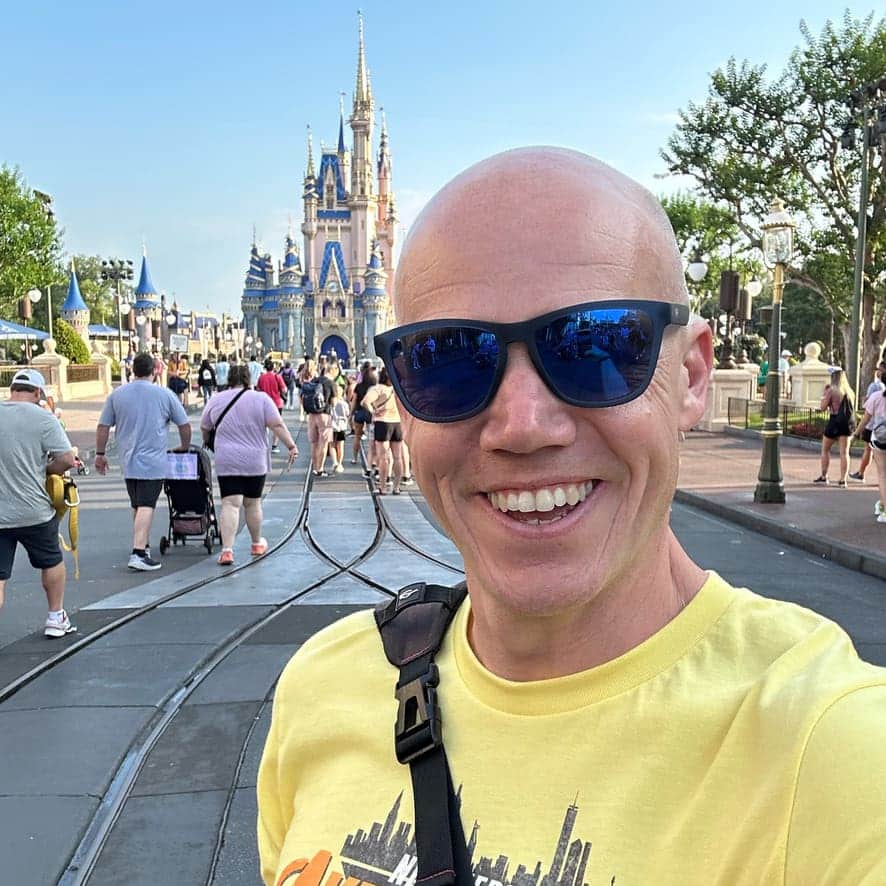
I’m a die-hard Disney fan with 38 years of visits under my belt, having stepped into Disney World 120+ times. Proud to be a Disney Annual Passholder, a Vacation Club member since ’92, a Castaway Club Member, and a runDisney enthusiast. Oh, and I’ve graduated from the Disney College of Knowledge. Need Disney insights or planning tips? I’m your guy!

LAST UPDATED: